While code templates have been in Delphi since Delphi 4, they seem simple compared to the new live templates feature first introduced in Delphi 2006. Live templates provide self-describing, intelligent code insertion, and interactive navigation to the variable parts of the template. If you are not using them now, it's time to take another look.
Consider the inserted template shown in the following figure. This template was created by executing the forb template, which inserts a for loop with a begin..end block.
Notice that initially the I (the loop iteration variable) is highlighted. This permits you to immediately edit the variable name, if you like. For example, many Delphi developers use a lowercase variable named i as their loop iterator (even though Delphi itself is case insensitive).
You will also notice that the I, as well as the 0 and List.Count appear as bordered text. These bordered text areas represent the sync points of the live template. After changing I to i, press Tab or Shift-Tab to navigate between the sync points of the template. As you navigate, you will notice that the hints change to describe the role of the currently selected point.
The following figure shows the same live template shown in the preceding figure after you have navigated to the third variable part.
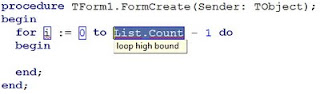
Many live templates, such as the forb template, also support intelligent code insertion, or
active scripting. With active scripting, code executes when you insert or interact with the template, conditionally performing one or more tasks for you. In the case of the forb template, if the function in which you insert this template does not already contain a declaration for the loop iterator variable, one will be inserted for you once you press the Tab key after completing all sync points. The following code segment depicts how a previously empty method might look after the execution of the active script associated with the forb live template.
Invoking Live Templates
Delphi provides you with a large number of standard live templates for each of its language personalities (Delphi, C++, XML, and so forth). These templates can be invoked either on demand or automatically, depending on how the live template is defined as well as how the Delphi environment is configured.
Regardless of a live template's definition, you can invoke a live template on demand by positioning your cursor within the editor where you want to place the live template and press Ctrl-J. Delphi responds by displaying the Insert Template menu, shown in the following figure. Select the template you want to insert from this menu and press Enter.
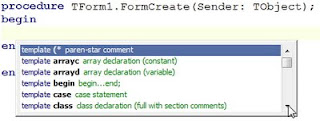
Similarly, you can begin typing the first few characters of the template shortcut name before pressing Ctrl-J. If only one template's shortcut name matches the characters you've typed, that template is selected and inserted, without the Insert Template menu being displayed. If two or more template shortcut names match what you've typed, the Insert Template menu appears, though only the matching template names are shown, in which case you then select which of the displayed templates you want and press Enter.
Automatic invocation is available when a live template and Delphi are both configured for it. For those live templates that include the invoke="auto" attribute in the template element of the template definition, auto completion is available when the Code templates completion and Auto complete checkboxes are checked on the Code Insight table of the Options dialog box. You display this dialog box by select Tools
Options from Delphi's main menu.
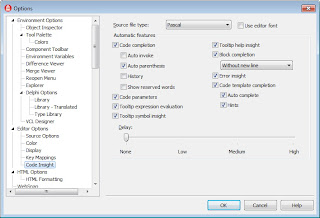
With automatic live template invocation, live templates are inserted when you type the name of a template shortcut and press Tab, Spacebar, or Ctrl-J. For example, if you type forb and press Tab with code templates completion enabled, the forb live template is instantly inserted into your code at the position of your cursor.
Live templates also show up in the code completion menu, which you can invoke by pressing Ctrl-Spacebar. Templates always appear at the end of this list.
You can also invoke live templates from the Templates pane, shown in the following figure. To display the Templates pane, select View | Templates from Delphi's main menu.
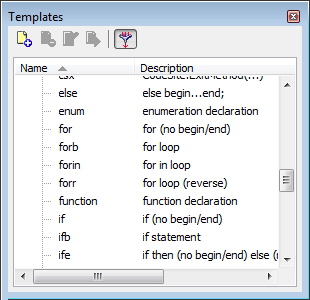
Each of the standard templates that ship with Delphi are defined by an XML file. You can edit this XML if you want to change the template's content or behavior. To edit one of the standard templates, select the template in the Template pane and then click Edit from the Template pane's toolbar. The following figure shows the case live template in the code editor.
The case live template is a good example to learn from, since it includes point, hint, text, description, author, and script elements. Furthermore, this is a surround template, which means that a code segment that you select before executing this template will result in the selected block of code being enclosed in the try block.
The Parts of a Live Template
The root element of a live template is the codetemplate element. The codetemplate element two attributes, xmlns and version, which define an XML namespace and a version, respectively. The codetemplate element has a single child element, named template.
The template element can contain four attributes. The name attribute is required, and must define a unique name for the template for the specified language.
The remaining attributes are optional. Use surround="true" to define a surround template, one that can surround a block of code. Use invoke= to define the type of invocation for the template. Valid values for invoke are "auto," "manual," and "none" (the default).
Set invoke to auto or manual to insert the template by typing its name and pressing a key. For auto templates you can press Space or Tab, and for manual templates you can press Tab. With any invocation type, you can type the name of the template and insert it using Ctrl-J, or you can press Ctrl-Spacebar and select the template from the displayed list.
The final attribute, inplace="true", defines an expansion template. It is unclear what an expansion template is, since it does not appear to be used.
The point, description, and author elements are child elements of template, and they are optional. When one or more point elements are used, they define custom sync points in your template code. Each sync point can include a text element, defining the default value, and a hint element, which sets a hint for the point.
A point, as well as the code element, can also define a script attribute, which references an active script. Active scripts are described later in this post.
The description element provides the description of the template that appears in the popup menus and the Templates dialog box. The author element identifies the template's author.
The final element, the code element, describes the code that the template inserts. This element has several attributes, as well as a CDATA section. For a Delphi template, set the language attribute to Delphi. Also, define the delimiter that identifies the custom and predefined sync points. Since the $ character, which is the default delimiter, has special meaning in Delphi, most developers define the | character (the vertical bar) as the delimiter.
The code itself appears in the CDATA section, between the [ and the ]]> characters. This code can include literal characters, hard returns, and sync points, both custom and predefined. In the code segment shown in the case live template, the |expression| and |cases| strings represent the position of the corresponding sync points in the live template. You can see these points defined earlier in the template definition.
In addition to your custom sync points, there are three predefined points. These are |surround|, |*|, and |end|. If your code template is a surround template, you include the |surround| point to identify where the selected block will appear, relative to the rest of the template. When |*| appears in your template, it specifies that what following on that line should be indented by the block indent amount defined on you Options dialog box. You can include as many |*| predefined points in your live template as you need.
Finally, the |end| predefined point identifies where your cursor will appear after the live template has been inserted. Like the |surround| point, there can be only one |end| point in your live template.
Custom Live Templates
While the standard live templates that ship with Delphi are extremely useful, you will be delighted to discover that you can create your own, custom live templates.
To create a custom live template, click New from the Templates pane's toolbar. Alternatively, you can select the Template Wizard from the Object Repository. To do this, select File | New | Other from Delphi's main menu. Then, select the Template Wizard from the Other Files node of the Object Repository and select Ok.
The new template appears as an XML document in the code editor, as shown in the following figure. As you inspect this figure, you will notice that the new template is displaying a hint. This is because the new custom live template is created by a live template. Not only does this reveal the incredible power of live templates, but the hints that are provide greatly simplify the process of creating your own new, live template.
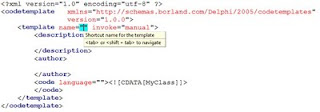
To complete your custom live template, fill in the various variable parts of the template, and add your own elements, as needed, to define the features you want in your template.
In addition to the hints that the Live Template template provides you with, you should also examine the standard live templates that ship with Delphi for insight and tips about writing your own, first-rate custom live templates.
Surround Templates
Surround templates are a special subset of live templates that permit you to quickly enclose, or surround, a selected block of code. Examples of surround templates include forb, try, procedure, and comment live templates.
For example, imagine that you want to enclose the following code selection in a try ... except block in a Delphi project.
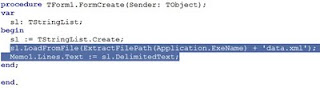
With the desired code selected, select the tryf live template from the Templates pane, and then click Execute. Alternatively, select the block of code to surround, right-click in the editor, select Surround from the displayed context menu, and then select tryf.
Notice also that the code block that you selected has been indented as well, making the resulting code more readable. You are now ready to insert a call to the Free method of the TStringList in the finally block, ensuring its destruction once you are through with it.
If you create your own custom surround templates, those will automatically appear in the Surround context menu. Specifically, the Surround context menu includes any custom live templates that you've created for the current language personality where the surround attribute is set to true in the
element.
Active Scripts
Active scripts are compiled Delphi classes that can react to events triggered during your interaction with a live template. Many of Delphi's templates use active scripts, including the case live template shown earlier , which invokes the PopulateCase active script. PopulateCase is one of about six active scripts that are shipped with Delphi. Sadly, their source code is not available.
While it is a more involved process, similar to that of creating a keyboard macro, you can also write your own active scripts to be called from your live templates. You do this by creating a design time package. Within this design time package you create a class that descends from TInterfacedObject and implements IOTACodeTemplateScriptEngine. The unit in which this class is implemented should use the ToolsAPI and CodeTemplateAPI units.
From within this new class, implement the GetIDString, GetLanguage, and Execute methods. Use GetIDString to return a unique string, one that will not be used by any other active script. As a convention, this string typically uses dot notation, and includes your company's name or acronym followed a dot and the active script name. No spaces can appear in this string.
You use GetLanguage to return the name of the language that will be used to identify your scripting class. This string is used in a script element, which instructs the editor to use your scripting class.
Finally, you implement the Execute method. This method is passed five parameters, some of which may be nil for a particular active script. The first parameter is an object that implements the IOTACodeTemplate interface. This object provides you with access to the text associated with the script element that is calling your script.
The second parameter is an object that implements an IOTACodeTemplatePoint. This object represents the current sync point triggering an onenter or onexit script. For onvalidate scripts, this object is nil.
The third parameter is an object that implements IOTASyncEditPoints. Use this object to examine all sync points in the live template. Again, this object is nil for onvalidate scripts, since the template does not actually exist yet.
The fourth parameter is an object that implements IOTACodeTemplateScript. This object provides you access to the CDATA section of the code element.
The final parameter is a Boolean parameter. You use this from an onvalidate script to signal that the template has been processed successfully.
From within your active script, your execute method examines sync points and the code template to determine what actions to take. Furthermore, since the ToolsAPI unit is in your uses clause, you can use the BorlandIDEServices object to gain access to the Editor ToolsAPI, which permits you to read, add, delete, and change text within the editor.
Summary
Live templates are one of those lesser used treasures in Delphi. While less approachable than their code template cousins from early versions of Delphi, they are much more powerful, and it is worth your while to take another look at them.
A Russian translation of this post can be found in Aleksey Timohin's Delphi blog: http://www.tdelphiblog.com/2011/07/live-templates-revisited.html. Aleksey is the author of Lazy Delphi Builder - free build tool for Delphi with automatic dependency resolving.
Русский перевод этой записи доступен в Delphi блоге Алексея Тимохина по адресу: http://www.tdelphiblog.com/2011/07/live-templates-revisited.html. Алексей также является автором бесплатного инструмента для сборки Delphi-программ: Lazy Delphi Builder.


